Showing posts with label hyper-v. Show all posts

Sunday, 9 March 2014

PowerShell shutdown all running Hyper-V VMs

PowerShell Script that shuts down all running virtual machines on named Hyper-V server. It shuts them down one at a time waiting while a VM shuts down before shutting down the next. Remember to substitute your <servername>. Quick way to shutdown the test environment at the end of the day.

$runningVM=Get-VM –ComputerName <servername> | Where-Object {$_.State -eq 'Running'}

foreach($cn in $runningVM){
Write-Host "Shutting down $($cn.name)"
stop-vm $cn.name -force
}

Add the following lines to shut down the Hyper-v server

Write-Host "Shutting down Hyper-V server”

Stop-Computer –computername <servername> –force

Saturday, 8 March 2014

Auto load PowerShell Window in Server Core

When working with a server core I like to have a PowerShell window open. Here is a quick way to do it.

You could just type PowerShell in the cmd window to turn it into a PowerShell window or type Start PowerShell to open a separate PowerShell window.

To have it there waiting for you:

  1. From cmd prompt run Regedit
  2. Navigate to Computer\HKEY_LOCAL_MACHINE\SOFTWARE\Microsoft\Windows\CurrentVersion\Run
  3. Add string Value called PowerShell with value cmd.exe /k %windir%\system32\WindowsPowerShell\v1.0\powershell.exe.

Alternatively use the PowerShell Command

New-ItemProperty -path HKLM:\SOFTWARE\Microsoft\Windows\CurrentVersion\run -Name PowerShell -Value C:\Windows\system32\WindowsPowerShell\v1.0\powershell.exe -Type string

Thursday, 30 May 2013

Hyper-V VMs continually shutting down

I have an issue with my Virtual Machines (VMs) shutting down after a short period. It would appear to be related to the operating system expiring.

Happens with Windows Server 2008 VMs … Windows 7 VMs appears to be okay.

One solutions is rearming from the command prompt with

slmgr.vbs –rearm

The post I got the fix from mentioned that this would reoccur in about 5 days.

I suspect that the VMs will have to be rearmed every time they are reverted. A small annoyance in a test environment but in a production environment … where is your licence!!

Sunday, 5 May 2013

Microsoft Evaluation VHD Administrator Password

Recently decided to use the evaluation VHD of 2008 R2 I downloaded from Microsoft .. but what was the password.

Goggled the file name …

“windows server 2008 r2 enterprise evaluation (full edition)”

… and found the password was Pass@word1.

It was then I remembered the problems I had with that password in the past.

The VM was created using the US local & keyboard settings if you are using a UK keyboard you have to type

Pass”word1

Saturday, 4 May 2013

Manage Hyper-V 2012 on Core from Windows 8

Unlike Window 7 and Hyper-V on 2008 R2 there is no need to download additional tools to administer Hyper-V from Windows 8 as they are a feature of Windows 8.

This is the Client Side Configuration there are plenty of postings relating to server side configuration. Both machines are in same workgroup.

Install Hyper-V Management Tools on Windows 8

Search for Control Panel

Select Control Panel then Programs

Under Programs and Features Heading select Turn Windows Feature On or Off

Tick Hyper-V Management Tools and both sub options

image

Start Component Services

Search "DCOMCNFG"

right click and "Run as administrator"

image

Select Console Root, Component Services, Computers, My Computer
Right click My Computer and select properties

Select "COM Security"
Select "Edit Limits" for Access Permissions

image
Allow remote access by setting the checkmark for the "ANONYMOUS LOGON"

image

Windows 2012 Core Disk Performance Missing

If you open Task Manager and go to the Performance tab Disk performance is missing.

Did a quick web search and someone remembered with NT 4.0 you had to enable this with …

diskperf –y

… and it works with Windows Server 2012 Core.

image

That takes me back.

Friday, 3 May 2013

TechNet: Test Lab Guides

Test Lab Guides (TLGs) allow you to get valuable hands-on experience with new products and technologies using a pre-defined and tested methodology that results in a working configuration. When you use a TLG to create a test lab, instructions define what servers to create, how to configure the operating systems and system services, and how to install and configure any additional products or technologies.

A challenge in creating useful TLGs is to enable their reusability and extensibility. Because creating a test lab can represent a significant investment of time and resources, your ability to reuse and extend the work required to create test labs is important.

TechNet: Test Lab Guides

Thursday, 25 April 2013

Remote Desktop printing add additional drivers

I run Hyper-V with a mix of 32bit/64bit operating systems and would like to print from any of the remote session to my local printer.

My ancient HP LaserJet 1200 has the default Windows 7 32bit driver installed but I cannot get the additional 64bit driver to install.

I seem to remember a similar situations in the past with a network printer where the resolution was the printer had a different name in the 32 bit inf than the 64 bit. I hacked the 64 bit inf file and ensured the names matched exactly … with success.

Did not want to go through that again and thought that I would try the HP Universal Printing PCL 5 drivers installed from the command line with PNPUTIL.EXE … why … never used it and wanted to try it.

  • Downloaded both versions of the driver from HP
  • Installed the 32 bit driver from an elevated command prompt
  • pnputil –a c:\<path>\*.inf
  • and did the same with the 64 bit
  • opened the printer properties, advanced tab and switched the driver to the HP Universal Printer PCL5

image

As I did not intend blogging this I forget whether I had to go to the share tab and add the additional drivers or whether it was smart enough to find it for itself.

image

Painless and I can now print from 64bit VMs

Sunday, 21 April 2013

Remote Server Manager on Server 2008 R2 Core

I have a long standing Hyper-V test environment running on Server 2008 R2 core. Recently decided to try Server Manager remotely from a Windows 7 machine to manage the 2008 Core.

Both machines are in the same workgroup and successfully configured for Remote Desktop. The Remote Server Administration Tool for Windows 7 are installed.

Run Server Manager on Windows 7 then try connecting to Hyper-V server and I get this error:
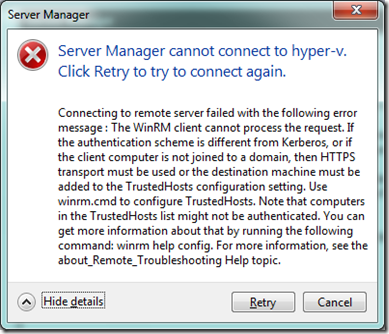
image

TechNet: Remote Management with Server Manager

On Hyper-V Server

Ensured that I had done the following

  • From sconfig.cmd
  • selected 4) Configures Remote Management the server 
  • then 3) Allow Server Manager Remote Management

this had no effect on the error there was no need to reboot the server as I had already installed PowerShell but did so anyway but still could not connect with Server Manager

On Windows 7 Client

net start winrm

winrm set winrm/config/client @{TrustedHosts="RemoteComputerName"}

Replace RemoteComputerName with server name

This failed on initial attempt

I should have run the following command first because machines where in workgroup not domain.

reg add HKLM\SOFTWARE\Microsoft\Windows\CurrentVersion\Policies\System /v LocalAccountTokenFilterPolicy /t REG_DWORD /d 1 /f

Running the winrm command again and Server Manger could connect to my Hyper-V server.

Still got errors on Server Manager components but a step forward.

Device Manager Error
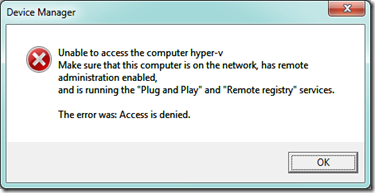
image

Resolution Enable Remote Access to Device Manager

See this very useful blog post

Enabling Remote Access to Device Manager on Server Core

Virtual Disk Management Error
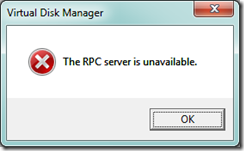
image

Resolution Windows 7 Firewall

Inbound rules on Windows 7 needed to be set

Remote Volume Management - Virtual Disk Service (RPC)

Remote Volume Management - Virtual Disk Service Loader (RPC)

Saturday, 20 April 2013

Migrating Hyper-V 2008 R2 Core to 2012 Core

I may be wrong … but on first evaluation it appears you cannot transfer Virtual Machines with Snapshots.

It would also appear that an in-place upgrade from Hyper-V 2008 running on core to Hyper-V 2012 running on 2012 core is not on.

Looks like my upgrade to Hyper-V 2012 will have to be put on hold.

Here is a Microsoft TechNet Blog explaining how to migrate from Hyper-V 2008 to Hyper-V 2012 on the core.

Step-by-Step: Migrating to FREE Microsoft Hyper-V 2012 Servers AND Clusters from 2008 R2 and VMware

Monday, 15 April 2013

Hyper-V 2008 Core Memory Requirements

Windows 2008 core apparently needs only 3GB of disk space and less than 256MB of RAM. Add Hyper-V and my task manager says 727MB.image

Wednesday, 3 April 2013

Windows 7 DiskPart & Virtual Hard Disks (VHD)

DiskPart.exe and managing Virtual Hard Disks (VHDs) in Windows 7

A useful MSDN blog posting about creating and attaching VHDs in Windows 7

Used DISKPART to create a VHD on my Windows 7 laptop dumped some files in it then moved it to my Hyper-V server and attached it to a Windows 7 Ultimate VM. Just a thing to know.

DiskPart.exe and managing Virtual Hard Disks (VHDs) in Windows 7

Monday, 1 April 2013

Windows 2008 R2 rearm activation grace period

You know how it is new version of a Microsoft product appears and the old evaluation versions disappear. Windows 2008 Evaluation version get it before it’s gone.

How to manually rearm the 10 day activation grace period
When the initial 10-day activation period nears its end, you can run the Slmgr.vbs script to reset it back to 10 days. To do this, follow these steps:

  • 1. Click Start, and then click Command Prompt.
  • 2. Type slmgr.vbs -dli, and then press ENTER to check the current status of your activation period.
  • 3. To reset the activation period, type slmgr.vbs –rearm, and then press ENTER.
  • 4. Restart the computer.
    This resets the activation period to 10 days, and can be used up to four times. After this you will need to either activate or reinstall the evaluation.
  • Get the Windows 2008 R2 evaluation download from here:

    Windows 2008 R2 Evaluation Virtual Machine

    Sunday, 31 March 2013

    Windows 7 BitLocker on Hyper-V Virtual Machine

    A posting on a MSDN blog … Basically how to run BitLocker on a Windows 7 VM without access to the host’s TPM chip using a virtual floppy to hold the start-up key to allow the machine to boot.

    Bitlocker in a Windows 7 Guest running on a Hyper-V R2 environment (or any environment without a TPM)

    Friday, 29 March 2013

    Hyper-V Remote Desktop Slow Large Send Offload

    Large Send Offload Slows Remote Desktop

    I have issues with Hyper-V connectivity that appear to be resolved by disabling Large Send Offload IPv4 on the Virtual Machines.

    image

    The two problems this appears to resolve are Windows Updates not working and Remote Desktop being painfully slow.

    The workaround until I found this setting was to change the VM to the legacy NIC

    Windows Updates would not work on VMs although the machine quite happily browsed the web made the initial connection to windows updates and downloaded the latest window update client.  Do not know if this is the case with WSUS.

    The second issue I have just resolved is that Remote Desktop runs painfully slow although remote connections from the Hyper-V Manager are unaffected.

    Tuesday, 26 March 2013

    Windows Server 2012 Incorrect Time Zone

    Windows Server 2012 Incorrect Time Zone after fresh install

    Was doing some work on my test servers and found that my newly installed Windows Server 2012 was running 7 hours late. (All VM clients running on the same Hyper-V Host)

    Running w32tm /tz I noticed that the time zone was Pacific Standard Time not GMT. All the regional setting where correct!!

    image

    Opened the date and time and the time zone was set to Pacific Time (US & Canada) changed time zone to the correct (UTC) Dublin, Edinburgh, Lisbon, London setting.

    image

    Run w32tm /tz again and time zone correctly set to GMT.

    The regional setting were correct so what happened to the Time Zone … my fault or Windows 2012 glitch!!

    Monday, 25 March 2013

    Hyper-V Windows Update error 80072ee2

    Hyper-V Windows Update would stop working with error 80072ee2

    After building a Windows 2008 R1 VM Windows Update stopped working.

    Windows Update Installed the latest update for Windows Update then any further attempts to check for updates resulted in a 80072ee2 error.

    It was still possible to browse the web.

    A temp fix was to use the Legacy NIC on the virtual machine and windows updates started working again.

    Just built a Windows 2008 R2 VM with the same problem but tracked it down to a setting on the VM NIC. The specific property Large Send Offload Version 2 (IPv4) must be set to Disabled and Windows updates starts working.

    How It’s done:

    Open Local Area Connection properties

    Select Configure

    image

    Select the Advanced tab

    You are looking for a property Send Offload IPv4

    Disable this property and Windows Updates should start working again

    image

    Disabled this on the Windows 2008 R1 server with similar results.

    How does basic networking work in Hyper-V?

    Do you have a test server running Hyper-V?

    Need to understand the basics of running Hyper-V with a single NIC?

    Need to understand the basics of running Hyper-V with Dual NICs?

    This blog entry from a member of the Hyper-V team should be a starting point.

    How does basic networking work in Hyper-V?

    Saturday, 23 March 2013

    Boot Virtual Machines from USB Flash Drive

    Portable-VirtualBox is a free and open source software tool that lets you run any operating system from a USB stick.

    This is one of those tool that I just want to test but don’t have the time. It allows you to store and run virtual machines from a USB Flash Drive.

    Portable-VirtualBox Download